NotebookBar part 2: icons, text and the code

The NotebookBar (NBB) or tabbed interface is an alternative user interface for LibreOffice. In the second part of this series, I explain the way the NotebookBar takes icons and text to create the final output that you see on the screen.

Creating NotebookBar is LibreOffice Code

Currently, the NotebookBar is not exactly like the other UI files that in LibreOffice with weld mechanism. In the first part of the series of blog posts on this topic, I discussed the custom widgets in notebookbars and how to edit them using Glade.

The custom widgets rely on C++ code, especially for sizing and other characteristics. For example, Priority Merged Horizontal Box (sfxlo-PriorityMergedHBox) is a “horizontal box hiding children depending on its priorities”. It needs C++ code to implement the priority display of the children. If you search for it in C++ files, you will reach builder.cxx:

$ git grep -l sfxlo-PriorityMergedHBox "*.cxx"
vcl/source/window/builder.cxx

The above file is a huge > 100 KB C++ source code  that handles NotebookBar custom widgets, but also handles every other VCL widget.

The other parts of the relevant code for the NotebookBar resides in below files. Search for both “Notebookbar” and “notebookbar” in C++ files:

$ git ls-files "*otebook*cxx"
sfx2/source/notebookbar/NotebookbarTabControl.cxx
sfx2/source/notebookbar/SfxNotebookBar.cxx
vcl/qt5/QtInstanceNotebook.cxx
vcl/qt6/QtInstanceNotebook.cxx
vcl/source/control/NotebookbarPopup.cxx
vcl/source/control/notebookbar.cxx
vcl/source/window/NotebookBarAddonsMerger.cxx

Icons in Notebookbar

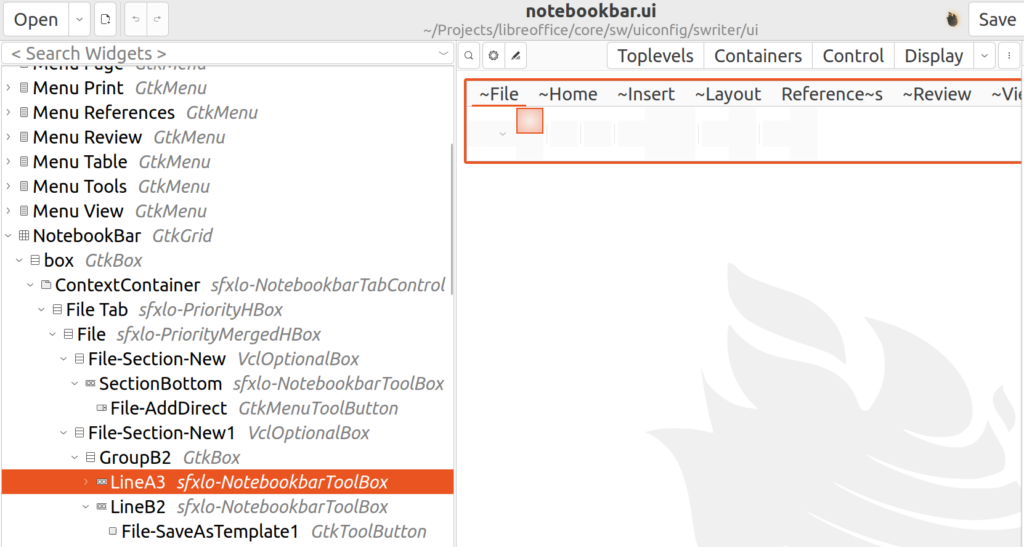
If you open the NotebookBar UI for LibreOffice Writer or other components like Calc, etc., what you see lacks two important things: icons and text.

Notebookbar widgets
Notebookbar widgets

First, let’s look into icons. The icon files come from the set of icon themes that are available with LibreOffice. The icon theme of LibreOffice is configurable, therefore you do not see some specific LibreOffice icon in the design. That makes the work of UI designers harder, but lets LibreOffice choose among different icon themes.

You may find more information in the icon-themes/ module README.md file, which describes how to create new icon themes, and how to link the icons to specific icons via .xcu files. For example, in officecfg/registry/data/org/openoffice/Office/UI/CalcCommands.xcu you see:

<node oor:name=".uno:OpenFromCalc" oor:op="replace">
    <prop oor:name="Label" oor:type="xs:string">
        <value xml:lang="en-US">~Open...</value>
    </prop>
    <prop oor:name="Properties" oor:type="xs:int">
        <value>1</value>
    </prop>
</node>

This is defined for the UNO dispatch command, .uno:OpenFromCalc, which opens a file for Calc. The complete list of UNO dispatch commands is available here:

For each command, two icon sizes are created, one small and one big icon. lc_<command name>.png and sc_<command name>.png, if not in SVG format. At first, one should add the icons for a new command to the colibre theme, in order to be usable also with other themes.

Here, the filenames will be lc_openfromcalc.png and sc_openfromcalc.png, which are available in the instdir/cache/ folder. In this case, these icon files do not exist in LibreOffice source repository, as they use fallback icons sc_open.png and sc_open.png.

Text in Notebookbar

The text for the commands can be found alongside the other details about the command in the .xcu file. For the UNO dispatch command .uno:OpenFromCalc, you can see the text “~Open…” is used. “~O” is for activating the shortcut “O” for this command, and “…” shows that this command will open a dialog, as a usual convention.

Some other properties of this command are defined in .sdi file scalc.sdi, as shown below:

SfxStringItem OpenFromCalc SID_OPEN_CALC
()
[
    AutoUpdate = FALSE,
    FastCall = FALSE,
    ReadOnlyDoc = TRUE,
    Toggle = FALSE,
    Container = FALSE,
    RecordAbsolute = FALSE,
    RecordPerSet;
    Asynchron;

    AccelConfig = TRUE,
    MenuConfig = TRUE,
    ToolBoxConfig = FALSE,
    GroupId = SfxGroupId::Options;
]

Following the SID_OPEN_CALC symbolic constant in C++ code shows where the implementation resides.

As another example, you may follow .uno:AddDirect, and then SID_NEWDOCDIRECT to find the place where the menu that shows the possible new files is created. This menu becomes visible when you click on the v button on “New Document” in the File section of the notebookbar.

$ git grep -l SID_NEWDOCDIRECT
basctl/sdi/baside.sdi
basctl/source/basicide/basides1.cxx
dbaccess/source/ui/app/AppController.cxx
include/sfx2/sfxsids.hrc
sfx2/sdi/appslots.sdi
sfx2/sdi/frmslots.sdi
sfx2/sdi/sfx.sdi
sfx2/source/appl/appopen.cxx
sfx2/source/view/viewfrm2.cxx
sw/source/uibase/app/apphdl.cxx
sw/source/uibase/utlui/glbltree.cxx

There are both common and application specific C++ files in the above results. I will write more about the details of creating the final “New Document” menu and its menu items, in later posts.

Final Notes

The NotebookBar is a complex part of the LibreOffice user interface. If you want to modify and change it, it is important to understand how to create .ui files for notebookbar, how to use them in the code, and how to display the desired UI elements in notebookbar on the screen.

There are plans to improve the NotebookBar and make it more like other weld UIs. But, that is yet to be implemented:

Validating ODF and OOXML files

In LibreOffice development, there are many cases where you want to validate some documents against standards: either Open Document Format (ODF) or MS Office Open XML (OOXML). Here I discuss how to do that.

Update: Article updated to reflect that odfvalidator 0.13.0 has just released.

Open Document Format (ODF) Validation

ODF is the native document file format that LibreOffice and many other open source applications use. It is basically set of XML files that are zipped together, and can describe various aspects of the document, from the content itself to the way it should be displayed. These XML files have to conform to ODF standard, which is presented in XML schemas. The latest version of ODF is 1.4, which is yet to be implemented in LibreOffice.

You can find more about ODF in these links:

There are various tools to do the validation, but the preferred one is the ODF Toolkit Validator:

Compiled binaries of ODF Toolkit can be downloaded from the above Github project:

Then, you can use the ODF validator this way:

$ java -jar odfvalidator-0.13.0-jar-with-dependencies.jar test.odt

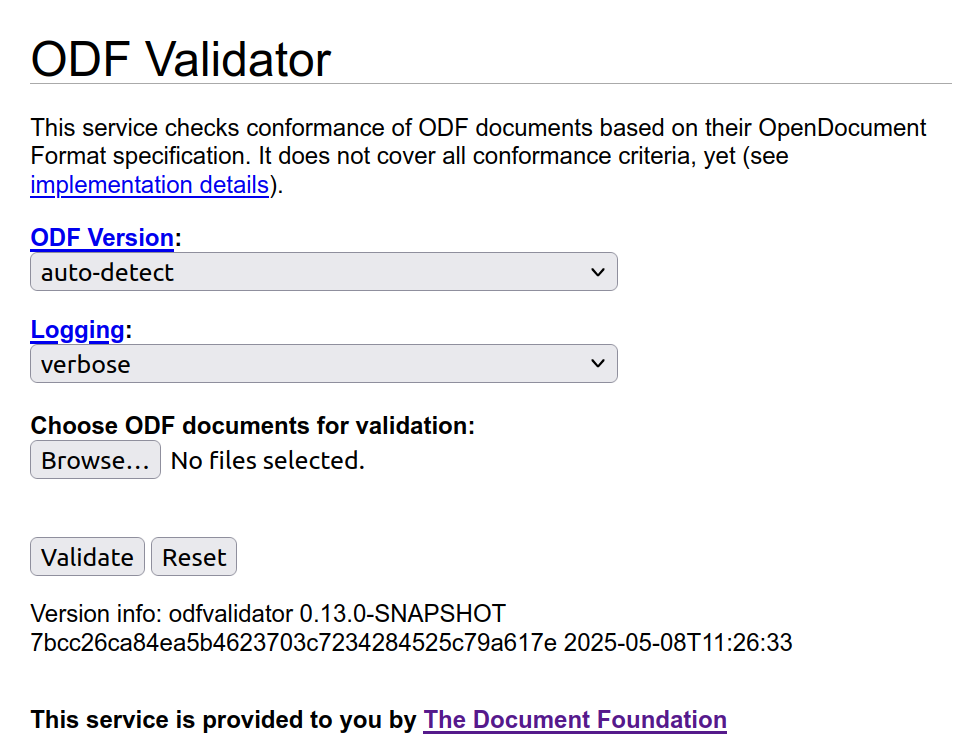
You may also use the online validator, odfvalidator.org, to do a validation.

odfvalidator
Online odfvalidator tool

Please read this disclaimer before using:

This service does not cover all conformance criteria of the OpenDocument Format specification. It is not applicable for formal validation proof. Problems reported by this service only indicate that a document may not conform to the specification. It must not be concluded from errors that are reported that the document does not conform to the specification without further investigation of the error report, and it must not be concluded from the absence of error reports that the OpenDocument Format document conforms to the OpenDocument Format specification.

Office Open XML (OOXML) Validation

MS Office Open XML (OOXML) is the native standard for Microsoft documents format. It is also a set of XML files zipped together, and conform to some XML schemas.

You can find out more about OOXML here:

There are tools to do the validation, and the one is used in LibreOffice is Office-o-tron. One can use it with below command to validate an example file, test.docx:

$ java -jar officeotron-0.8.8.jar ~/test.docx

Office-o-tron can be downloaded from dev-www.libreoffice.org server of LibreOffice, and this is currently the latest version:

It is worth noting that Office-o-tron can be also used to validate ODT files.

Extensions to ODF Standard

To go beyond the current ODF standard, new features are sometimes introduced as “ODF extensions”, then are gradually added to the standard. You can read more in TDF Wiki:

In these cases, you may see validation errors for such extensions. For example:

test.odt/styles.xml[2,3347]: Error: unexpected attribute “loext:tab-stop-distance”
test.odt/styles.xml[2,4849]: Error: unexpected attribute “loext:opacity”

You may avoid such errors by using -e option, which ignores such unknown markups:

-e: Check extended conformance (ODF 1.2 and 1.3 documents only)

If you want to use the latest features from ODF validator, you should build ODF Toolkit from source. You can then run it with this command:

$ java -jar ./validator/target/odfvalidator-0.14.0-SNAPSHOT-jar-with-dependencies.jar test.odt

ODF Toolkit developers have recently (23 January 2026) published the new release 0.13. If you do not build from sources, you can use this new version which contains ODF 1.4 support.

Final Words

When you want to make sure that the ODT or OOXML document you generate is valid according to the standards, then you need validation. Sometimes, it is the opposite: you want to make sure that the input document is valid before processing it, or when you want to know if the problem is from LibreOffice (or other processors), or the document itself. Then, again, the validator is the right tool to use.

Outlook for the new year 2026

Happy new year 2026! I hope that this year will be great for you, and the global LibreOffice community, and the software itself! I hereby discuss the past year 2025, and the outlook for 2026 in the development blog.

At The Document Foundation (TDF), our aim is to improve LibreOffice, the leading free/open source office suite that has millions of users around the world. Our work is community-driven, and the software needs your contribution to become better, and work in a way that you like.

My goal here, is to help people understand LibreOffice code easier via EasyHacks and tutorials, and eventually participate in LibreOffice core development to make LibreOffice better for everyone. In 2025, I wrote 14 posts around LibreOffice development in the dev blog (4 of them are unpublished drafts).

Outlook For the New Year

Focus of the development blog for 2026 in this blog will be:

  • Introducing new EasyHacks
    • Using new C++20 constructs
    • Difficulty Interesting EasyHacks
  • Describing user interface creation with VCL
    • VCL weld mechanism
    • Various weld widgets
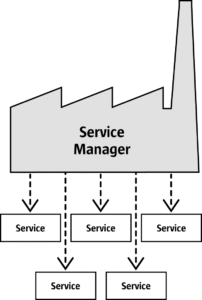
  • Describing UNO Components

You can provide feedback simply by leaving a comment here, or sending me an email to hossein AT libreoffice DOT org.

We provide mentoring support to the individuals who want to start LibreOffice development. You are welcome to contact me if you need help to build LibreOffice and do some EasyHacks via the above email address. You may also refer to our Getting Involved Wiki page:

Let’s hope a better year for LibreOffice (and the world) in 2026.