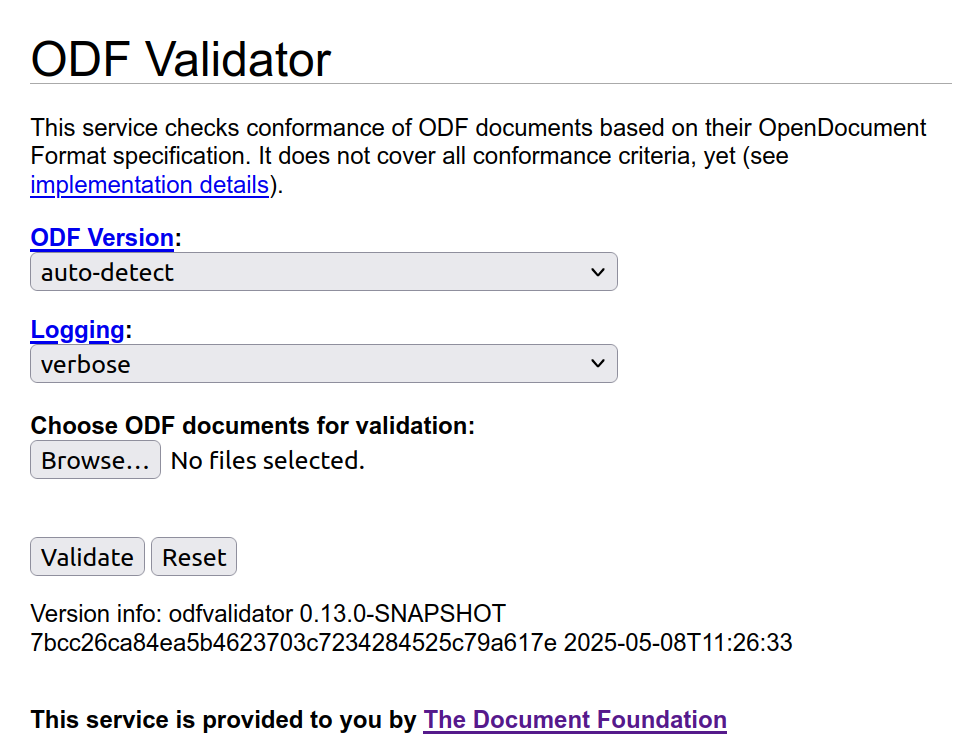
After submitting a patch to LibreOffice Gerrit, one has to wait for the continuous integration (CI) to build and test the changed source code to make sure that the build is OK and the tests pass successfully. Here we discuss the situation when one or more CI builds fail, and how to handle that.
Why Build and Test on CI?
After you submit code to LibreOffice Gerrit, reviewers have to make sure that it builds, and the tests pass with the new source code. But, it is not possible for the reviewers to test the code on each and every platform that LibreOffice supports. Therefore, Jenkins CI does that job of building and testing LibreOffice on various platforms.
This can take a while, usually 1 hour or so, but sometimes can take longer than that. If everything is OK, then your submission will get Verified +1 .
CI Platforms for LibreOffice
Currently, these are the platforms used in CI:
Linux / GCC:gerrit_linux_gcc_release
Linux / Clang:gerrit_linux_clang_dbgutil
Android Viewer:gerrit_android_x86_64 and gerrit_android_arm
Windows:gerrit_windows_wsl
macOS:gerrit_mac
Some of the tests are more extensive, for example Linux / Clang also performs additional code quality checks with clang compiler plugins. Also, UITests are not run on each and every platform.
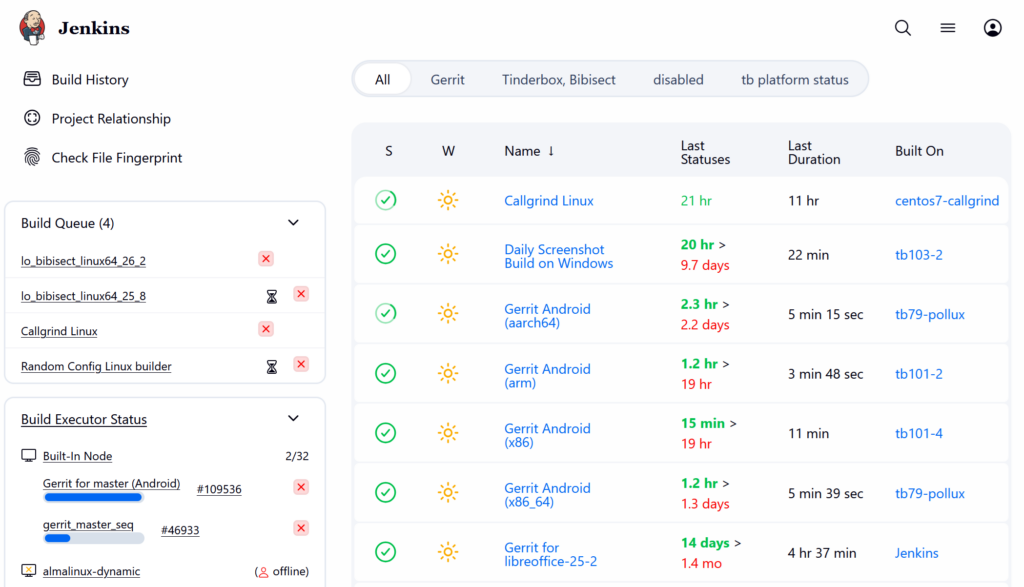
LibreOffice CI uses Jenkins
Why Failures Happen and How to Fix?
There can be multiple reasons for why a CI build fails, and give your submission Verified -1 . These are some of the reasons, and depending on the reason, solution can be different.
1. Your code’s syntax is wrong and compile fails
In this case, you should fix your code, and then submit a new patch set. You have to wait again for a new CI build.
2. The code’s syntax is OK, but it is not properly formatted
You should refer to the below TDF Wiki article and use clang-format tool to format your code properly.
3. Your code’s syntax is OK, but it logically not OK and fails some tests.
In this case, you should try fixing your code logic, and run the tests that fail and make sure they pass. After that, you may send a new patch set and wait for a new CI build.
4. Your code’s syntax and logic is OK, but some machine fails for other reasons like their disk being full or other software/hardware failures or hiccups
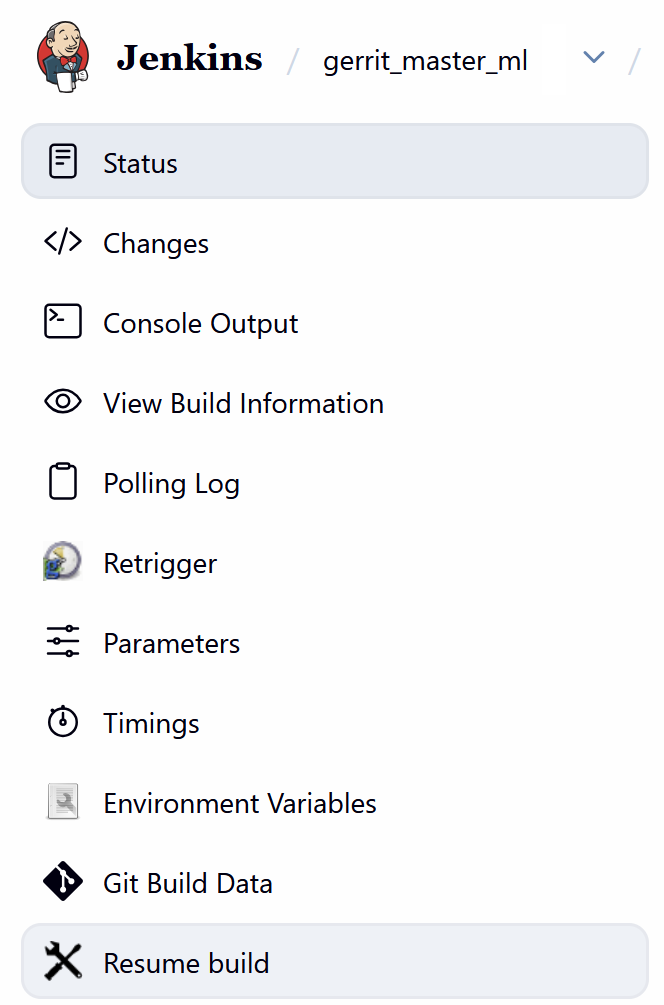
In this case, usually resuming the build can be a good option. You may ask on #libreoffice-dev or #tdf-infra IRC rooms for such a resume, or request access, if you submit many patches.
Resume build in LibreOffice CI
5. Your code’s syntax and logic is OK, but there are issues from other patches.
In this case, intervention from other LibreOffice developers is needed. Informing people on #libreoffice-dev can help, and then you have to re-base your submission in case new patches fix the build issue.
Final Notes
The best way to know the reason of the build failure is to look into the CI log files. Sometimes it needs more detailed look to understand the issue, but sometimes the reason is easily provided on Gerrit as a comment.
But, in the end your submission should have Verified +1 before it is suitable for merge in the LibreOffice code. This +1 as verified, does not guarantee that your patch will work as expected, but it is an important requirement. Read the rest
When you want to interact with users, sometimes simple dialog boxes are sufficient: a simple yes or no, or some info box. But in other cases, you may need more complex message boxes. Here I discuss how to use VCL Weld to create a custom one.
Simple Message Box
You can create a simple message box, using predefined templates like Info box using a code snippet like this:
std::unique_ptr<weld::MessageDialog> xInfoBox(Application::CreateMessageDialog(pParent,VclMessageType::Question, VclButtonsType::YesNo,u"Are you sure?"_ustr));xInfoBox->run();
And, this is the result, which is very simple, without any title bar:
Yes / No message box
There are other predefined types, which can be used in different scenarios:
But, if you want custom message boxes, you should be using weld mechanism, with its CreateBuilder function.
Custom Message Boxes
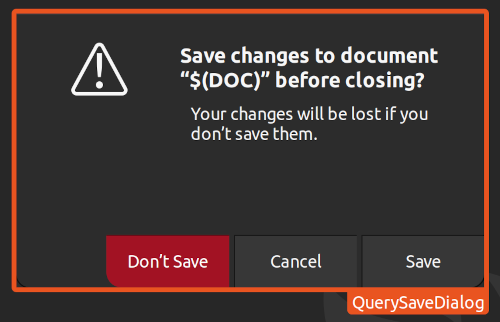
Below is the code from the source code sfx2/source/doc/QuerySaveDocument.cxx, which is inside sfx2 (framework) module. This dialog box is accessible across different modules, including Writer, Calc and Draw/Impress.
The code is using a UI file, named sfx/ui/querysavedialog.ui to create a message dialog, and then change the title of it.
QuerySaveDialog
If you look into the include file, include/vcl/weld.hxx inside Builder class, you may see functions like weld_… that are suitable to find various different UI elements from the UI, by mentioning the element ID. For example, to find a label with the ID equal to lable_id, you do this:
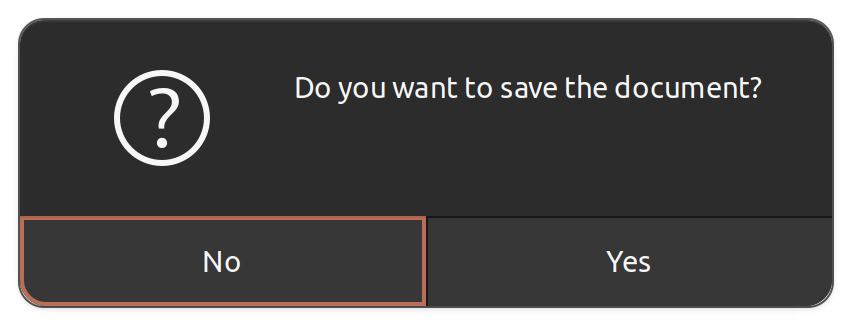
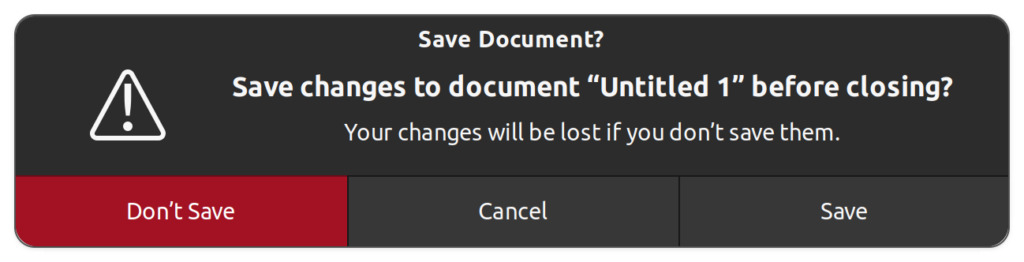
This is the result, when you try to close an unsaved document.
QuerySaveDialog running
Alternative Ways
This is not the only way you can create nice dialog boxes using VCL weld mechanism. There are some predefined message boxes that look nice which use weld mechanism, and are available for use via relevant C++ classes.
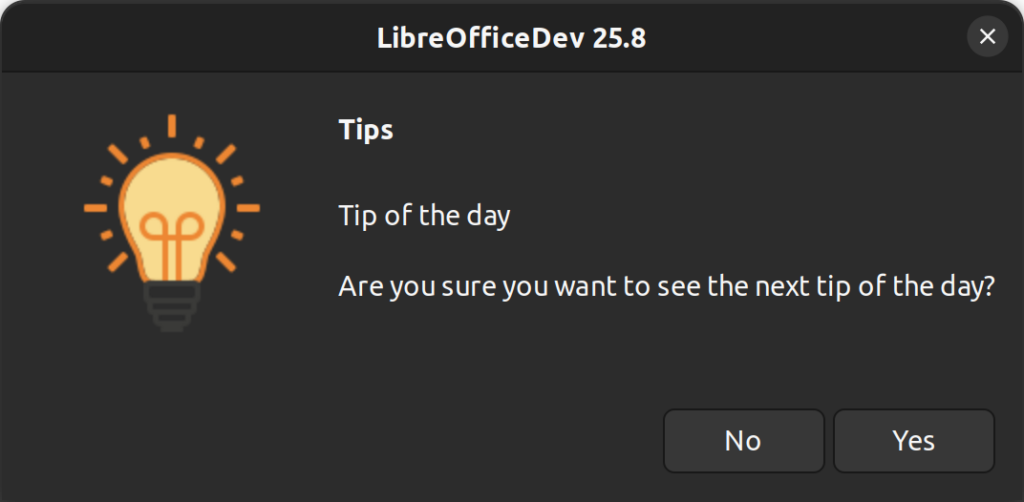
It uses a predefined dialog, using cui/uiconfig/ui/querydialog.ui as the UI file, and it contains a nice stock image! You can test it easily, by modifying a LibreOffice example, minweld.
IMPL_LINK_NOARG(TipOfTheDayDialog, OnNextClick,weld::Button&,void){VclAbstractDialogFactory* pFact =VclAbstractDialogFactory::Create();autopDlg = pFact->CreateQueryDialog(getDialog(),u"Tips"_ustr,u"Tip of the day"_ustr,u"Are you sure you want to see the next tip of the day?"_ustr, false);sal_Int32nResult = pDlg->Execute();pDlg->disposeOnce();if(nResult==RET_YES){++m_nCounter;m_pTextLabel->set_label(u"Here you will see tip of the day #"_ustr+OUString::number(m_nCounter) +".");}}
Assuming that you have a working build of LibreOffice, you can simply run the minweld workbench by invoking:
./bin/run minweld
The result looks much more interesting:
QueryDialog
Final Words
The possibilities are endless! It only depends on your ideas and understanding of the user’s needs and requirements. It would be good if you look into what design team does to understand the design process:
LibreOffice uses VCL (Visual Class Library) as its internal widget toolkit to create the graphical user interface (GUI) of LibreOffice. Here I discuss how to use UI files designed with Glade interface designer to create LibreOffice user interfaces with a framework called weld, which is part of LibreOffice core source code.
Creating a Minimal VCL Weld Application
In my previous blog post, you can find out about the structure of a minimal VCL application. Please refer to the below blog post to see how a Window is created in VCL, and how it can be used as a test workbench called minvcl. You can run it with ./bin/run minvcl after you build LibreOffice.
Here I discuss how to go further, and create user interface with Glade interface designer, and do most of the things without writing code.
VCL Weld Mechanism
In order to simplify user interface creation in LibreOffice, experienced LibreOffice developer, Caolán, has introduced a mechanism to load UI files created with Glade interface designer, and use them as if they are UI files for each and every GUI framework that LibreOffice supports: from GTK itself to Qt, Windows, macOS and even the so-called gen backend that only requires the X11 library on Linux.
To illustrate how the VCL weld mechanism works, I have added a minimal example, minweld, as a test workbench. The structure of the code is very similar to the previous example, minvcl, but there are some changes in the code. In the new code, UI is created from a .ui file that is designed visually with Glade interface designer. The .ui file is an XML file which contains placement of widgets that should be displayed on the screen.
The complete code for minweld is available in the LibreOffice core source code repository, which can also be viewed online:
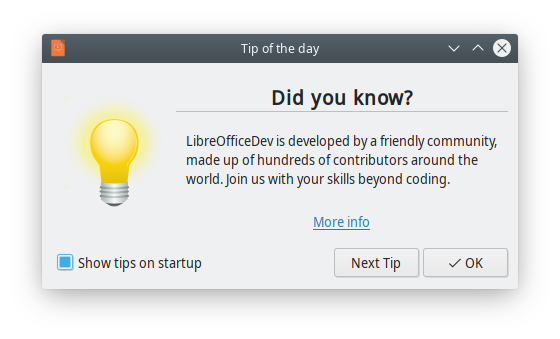
In minweld, I have used an existing Glade UI file, tipofthedaydialog.ui. This is the user interface for displaying a tip of the day in LibreOffice at startup. Heiko, the TDF design mentor, has discussed this dialog box in detail before:
But, you can assume that it is a simple .ui file, that one can create with Glade. Here, we use it to create our own user interface in C++. You may use any other .ui file that you have created with almost the same code.
Tip of the day displayed at LibreOffice startup
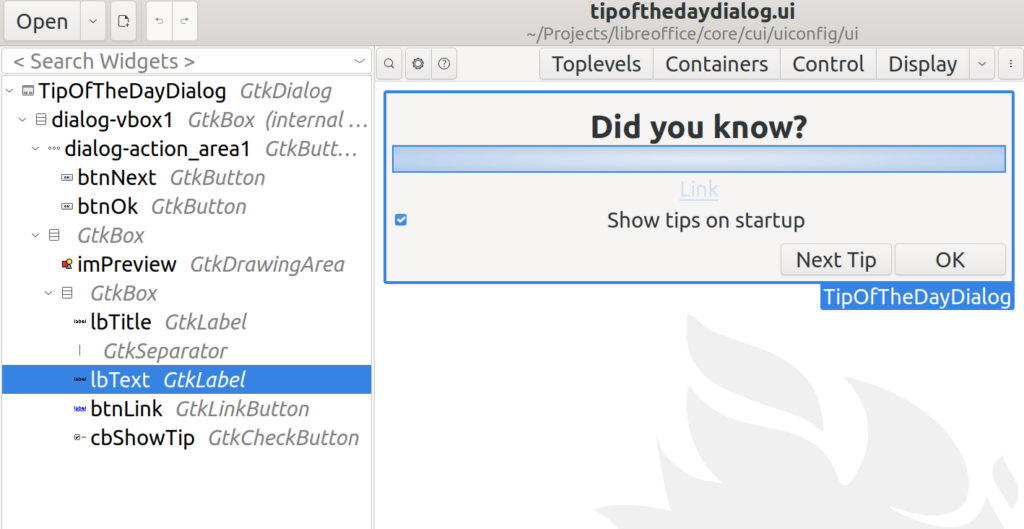
This UI file is found in cui/uiconfig/ui/tipofthedaydialog.ui, and minweld loads it. This is how it looks when you open it in Glade interface designer:
tipofthedaydialog.ui in Glade user interface designer
Let’s look into the specifics of minweld.cxx.
Header Includes
Headers are almost the same, but here we use vcl/weld.hxx instead of vcl/wrkwin.hxx. Therefore, you can see this line in the code:
#include<vcl/weld.hxx>
Then we have the C++ code for the application. The TipOfTheDayDialog class is defined with:
As you can see, TipOfTheDayDialog inherits from weld::GenericDialogController, and not Application class as before. Also, TipOfTheDayDialog constructor receives a parent of type weld::Window*, which is nullptr now. The reason is that there is no parent window in this example. Using weld:: prefix is also done for other types of widgets that we use in LibreOffice. For example, we use weld::Button to denote a push button in LibreOffice, or in any application that is created with the vcl::weld mechanism.
Class Constructor
This is the code for the TipOfTheDayDialog constructor. Here, we initialize two member variables, m_pTextLabel and m_pNextButton which point to a label and a button, respectively. We will interact with these two in our code. There are string literals like lbText and btnNext , which are the IDs of those widgets in Glade. The IDs should be unique for linking to specific variables in the code.
One last step is linking the events with functions in the code. You may do that with the LINK macro. In the last line, connect_clicked activates OnNextClick from the class TipOfTheDayDialog, whenever m_pNextButton is clicked.
Event Handler
This is the implementation of the event handler. It should be started with IMPL_LINK macro, in the form of IMPL_LINK_NOARG(Class, Member, ArgType, RetType). The code is straightforward: It increases a counter which is initially zero, and displays it alongside a text:
IMPL_LINK_NOARG(TipOfTheDayDialog, OnNextClick,weld::Button&,void){
++m_nCounter;m_pTextLabel->set_label(u"Here you will see tip of the day #"_ustr
+OUString::number(m_nCounter) +".");
}
With a call to set_label function, m_pTextLabel is updated every time that you click on “Next Tip” button.
Running the Example
You may run the example after you have built LibreOffice from sources. Then, you may simply invoke:
./bin/run minweld
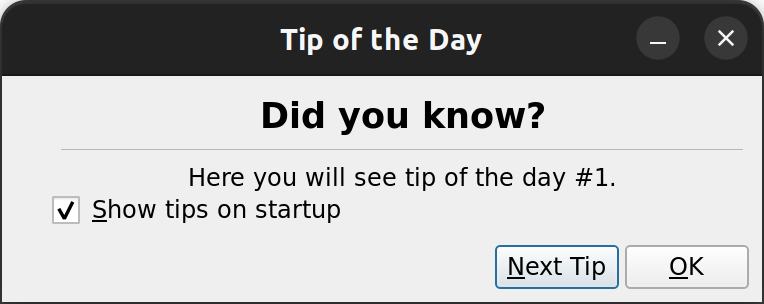
The result is a little bit different from the tipoftheday dialog in LibreOffice, as it does not use a picture. But, it has a nice feature: if you click on “Next Tip”, it will show a text and a counter that goes up whenever you click on it again.
Final Notes
You may look into the original “tip of the day” dialog box in cui/source/dialogs/tipofthedaydlg.cxx, which is more complex than the one that we created here, as it reads some data from the configuration and uses images. But, the idea is the same. Inherit a class from GenericDialogController, define and link variables to the widgets with their IDs, add event handlers. Now, the application with VCL graphical user interface is ready to use!
This is somehow similar to the way one creates dialog boxes with Qt and other widget toolkits. On the other hand, the VCL weld mechanism is different in the way that it uses such a toolkit to create UI on the fly. Therefore, if you choose a desired VCL UI plugin, then it will use that specific library for creating user interface. For example, you can run minweld example with Qt this way:
export SAL_USE_VCLPLUGIN=qt5
./bin/run minweld
The minweld example in Qt (light theme)
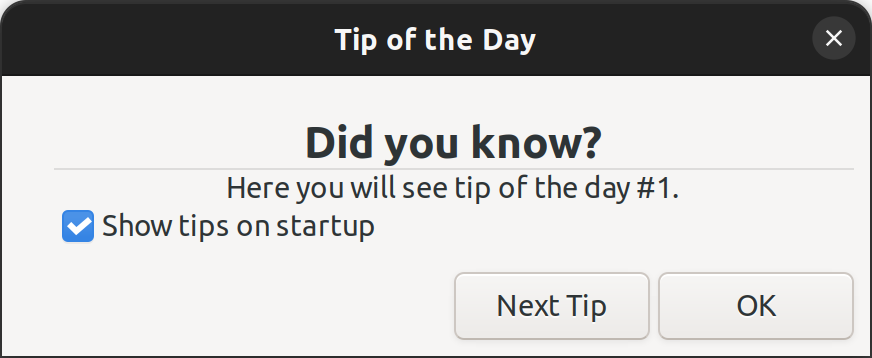
You may also run it with GTK3 UI, this way:
export SAL_USE_VCLPLUGIN=gtk3
export GTK_THEME=Adwaita:light # For light/dark theme
./bin/run minweld
The minweld example in GTK3 (light theme)
I hope that this explanation was helpful for you to understand the basics of GUI design and implementation in LibreOffice. You can try doing small improvements in LibreOffice GUI by looking into the EasyHacks that with the tag “Design“:
We welcome your code submissions to improve LibreOffice. If you would like to start contributing to LibreOffice, please take a look at our video tutorial:
Notebookbar, or tabbed interface is an attempt to modernize LibreOffice user interface. In these series, I try to explain the implementation in LibreOffice code. In the first part, I discuss custom Glade widgets that are building blocks of Notebookbar user interface.
Building LibreOffice From Sources
If you haven’t built LibreOffice from sources before, you can refer to can refer to this tutorial:
The next sections assume that you have a working build environment.
Custom Widgets in Glade Catalogs
Notebookbar implementation consists of .ui files, configuration files and C++ implementation. Let’s look into the user interface files.
First time that you clone LibreOffice source code, and try to open a Notebookbar UI file like this, you may see error:
$ glade ./sc/uiconfig/scalc/ui/notebookbar.ui
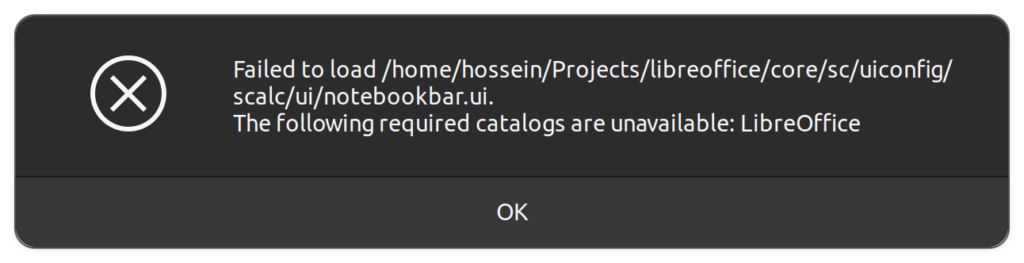
You may see an error, which indicates that a required catalog related to LibreOffice is not available.
Glade error
To fix this issue, you have to know that Notebookbar uses custom widgets that with the Glade interface designer. These custom widgets are available from a Glade catalog with the name of LibreOffice.
Inside sc/uiconfig/scalc/ui/notebookbar.ui, you may see these two lines:
The .in files is an input file in which the build process creates the final xml file out of it. Searching for glade-catalog inside the build folder results:
As you can see, the result goes inside the folder instdir/share/glade/, so to be able to use the catalog, you should add this folder to the glade catalog search path. One of the easiest ways to do this, is to add it via Glade interface itself. Use ☰ (hamburger menu), go to “Glade Preferences”, and add instdir/share/glade/ to the “Extra Catalog & Template paths”. Then, reload a notebookbar UI file, and the error should go away. This setting is saved inside ~/.config/glade.conf configuration file.
If you want to get a preview of the UI file, you need to set the environment variable first:
Inside the Glade custom catalog instdir/share/glade/libreoffice-catalog.xml, you can see 10 custom widgets:
$ grep "glade-widget-class\ " instdir/share/glade/libreoffice-catalog.xml
<glade-widget-classtitle="Notebookbar ToolBox" name="sfxlo-NotebookbarToolBox" generic-name="Notebookbar ToolBox" parent="GtkToolbar" icon-name="widget-gtk-toolbar"><glade-widget-classtitle="Notebook switching tabs depending on context" name="sfxlo-NotebookbarTabControl" generic-name="NotebookbarTabControl" parent="GtkNotebook" icon-name="widget-gtk-notebook"/><glade-widget-classtitle="Horizontal box hiding children depending on its priorities" name="sfxlo-PriorityHBox" generic-name="PriorityHBox" parent="GtkBox" icon-name="widget-gtk-box"/><glade-widget-classtitle="Horizontal box hiding children depending on its priorities" name="sfxlo-PriorityMergedHBox" generic-name="PriorityMergedHBox" parent="GtkBox" icon-name="widget-gtk-box"/><glade-widget-classtitle="Box which can move own content to the popup" name="sfxlo-DropdownBox" generic-name="DropdownBox" parent="GtkBox" icon-name="widget-gtk-box"/><glade-widget-classtitle="Box which can hide own content" name="VclOptionalBox" generic-name="VclOptionalBox" parent="GtkBox" icon-name="widget-gtk-box"/><glade-widget-classtitle="Vertical box hiding children depending on context" name="sfxlo-ContextVBox" generic-name="ContextVBox" parent="GtkBox" icon-name="widget-gtk-box"/><glade-widget-classtitle="Managed Menu Button" name="svtlo-ManagedMenuButton" generic-name="ManagedMenuButton" parent="GtkButton" icon-name="widget-gtk-button"/><glade-widget-classtitle="NotebookBar Toolbar Addons" name="NotebookBarAddonsToolMergePoint" generic-name="ShowText" parent="GtkToolButton" icon-name="widget-gtk-toolbutton"/><glade-widget-classtitle="NotebookBar MenuItem Addons" name="NotebookBarAddonsMenuMergePoint" generic-name="ShowText" parent="GtkMenuItem" icon-name="widget-gtk-menuitem"/>
The previous xml shows the custom widgets that are building blocks of building Notebookbar. Let’s look into each of them, based on their title and names.
Notebookbar widgets
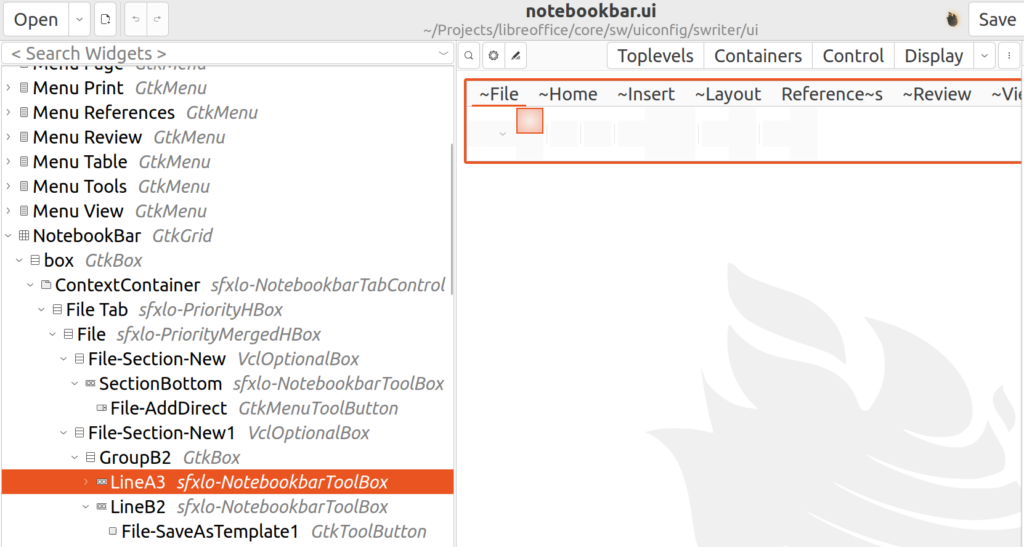
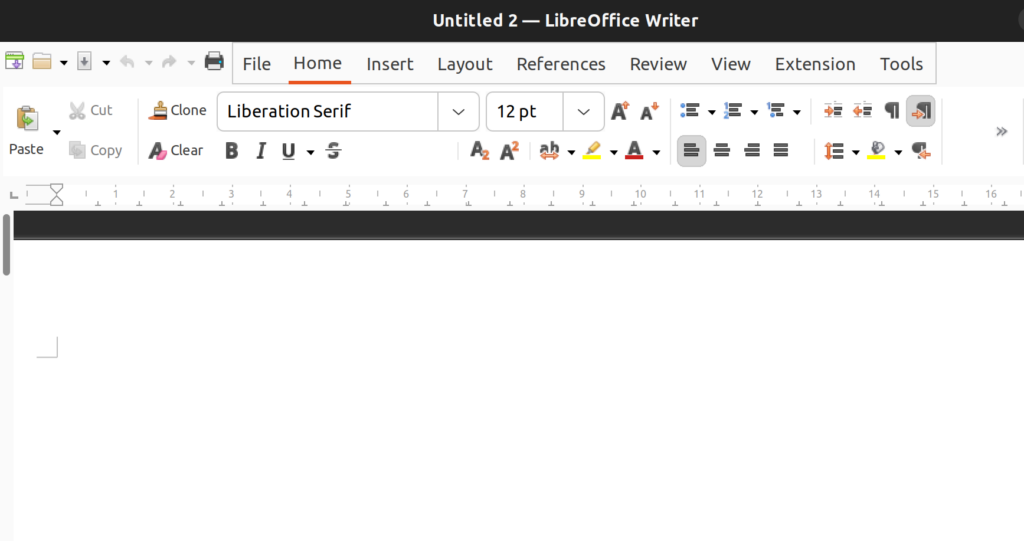
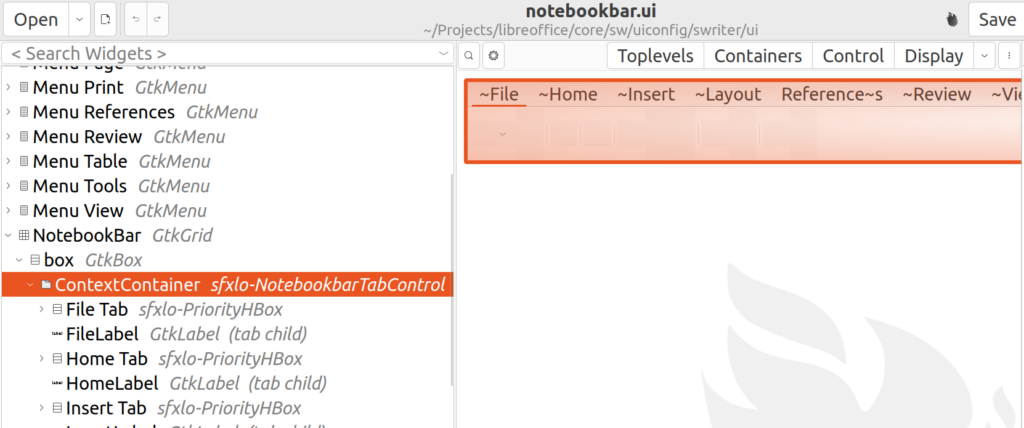
In the next picture, you can see the notebookbar in LibreOffice, and compare it to what is visible in Glade user interface designer. As you can see, not everything is visible in the designer. Specifically, icons and text are not visible in the designer but are visible in the final application.
Notebookbar in LibreOffice
Main Widget
1. Notebookbar Tab Control: This widget has the name sfxlo-NotebookbarTabControl, and is the primary widget for Notebookbar. It can change the set of visible tabs based on the user context. Its parent class is GtkNotebook and provides context-sensitive tab switching.
Container Widgets
2. NotebookbarToolBox: This widget is named sfxlo-NotebookbarToolBox, its parent class is GtkToolbar. It can contain toolbar elements.
NotebookbarTabControl
3. Priority Horizontal Box: This widget has the name sfxlo-PriorityHBox, and its parent class is GtkBox. It is the horizontal box hiding children depending on its priorities. In this way, lower priority widgets becomes hidden to give the more important widgets room to be displayed on a screen that is not big enough to show all the available elements.
4. Priority Merged Horizontal Box: This widget has the name sfxlo-PriorityMergedHBox, and its parent class is GtkBox. It is the “horizontal box hiding children depending on its priorities”. This widget is also related to the previous one for creating more room for important widgets, but it is used inside the PriorityHBox.
5. Optional Box: This widget has the name VclOptionalBox, and its parent class is GtkBox. This “box which can hide own content”, is a widget that is useful for creating small areas dedicated to a specific purpose. For example, you may see Home-Section-Clipboard, which is used to define an area for clipboard related tasks inside Home tab.
6. Contextual Vertical Box: This widget has the name sfxlo-ContextVBox and is a “vertical box hiding children depending on context” and its parent class is GtkBox. It provides a box that can act based on the context, showing and hiding its children accordingly. You may look into sw/uiconfig/swriter/ui/notebookbar_single.ui, which provides an example use.
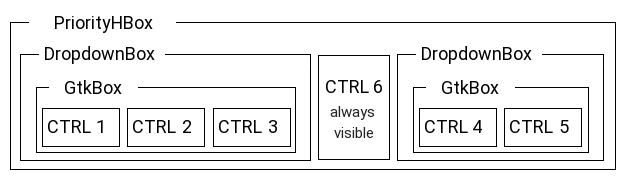
Here is the correct control hierarchy, as depicted and described in the TDF Wiki:
Correct Notebookbar controls hierarchy
Menu Widgets
7. Dropdown Box: This widget has the name sfxlo-DropdownBox, its parent class is GtkBox and is a “box which can move own content to the popup”. This is also useful where the space for the tabbed interface is not big enough. The menu, is what you can see in “File” and “Help” menu in every notebookbar in LibreOffice tabbed interface. Please note that only 1 GtkBox child should be inside it, so that the popup works properly. In fact, the above diagram shows the correct usage.
8. Managed Menu Button: This widget has the name svtlo-ManagedMenuButton, and its parent class is GtkButton. It is a “Managed Menu Button”. It provides a button that opens a dynamic menu which is populated according to the context.
Custom Widgets for the Extensions
9. NotebookBar MenuItem Addons: This widget has the name NotebookBarAddonsToolMergePoint, and its parent class is GtkToolButton. Specifically, LibreOffice extensions can use it for adding additional tools to the notebookbar.
10. NotebookBar MenuItem Addons: This widget has the name NotebookBarAddonsMenuMergePoint, and its parent class is GtkMenuItem. This is also used for adding extra items into the notebookbar.
Final Notes
You can find useful information about Notebookbar in the design team blog:
In previous blog posts about crashes in LibreOffice, I have discussed how to debug and fix some of crashes. Now I discuss a nice tool to keep track of the crash reports from volunteers: Crash report tool.
Crash Report Statistics
Crash report is available via this LibreOffice website:
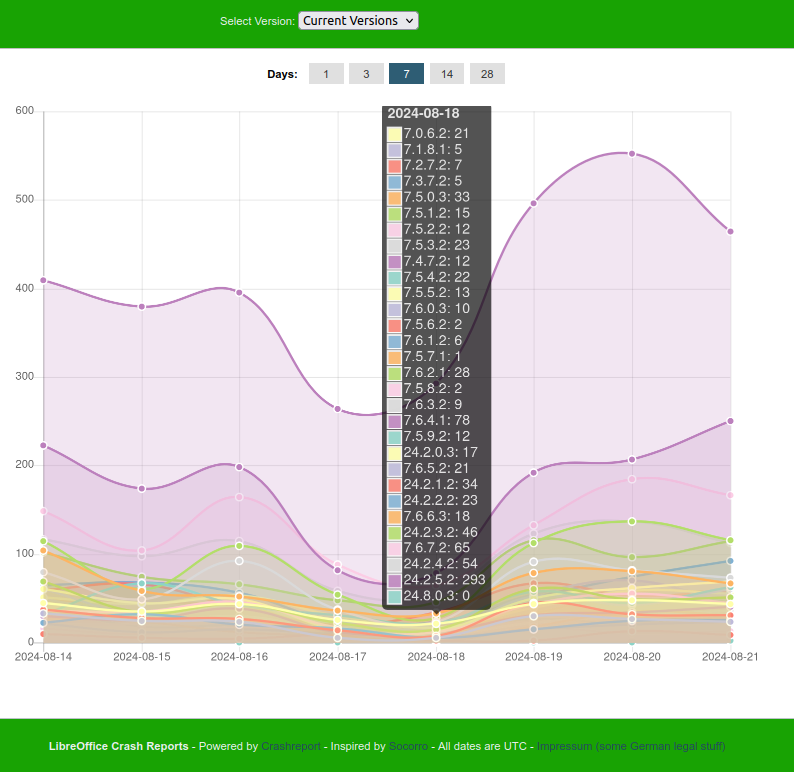
You can see that different versions of LibreOffice listed there, and for each and every tracked version, number of crashes during the previous 1, 3, 7, 14 and 28 days can be seen. This is possible using the appropriate buttons on the top.
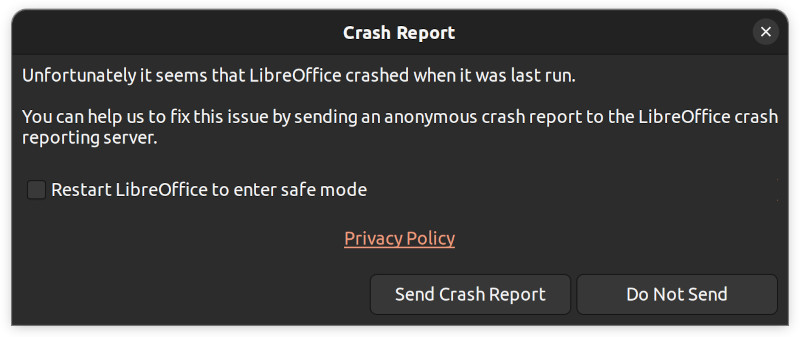
This data is gathered from those to volunteer to submit reports to make LibreOffice better.
This statistic is very helpful to understand the robustness of the builds in different versions.
Crash Signatures
If you choose a specific version, you may see signatures of the crashes. This is helpful when trying to fix crashes. For example, this is one of the crash signatures found in LibreOffice 24.8.0.3:
This shows that the crash happens in GetCharFormat() function. One may use this information to track and fix the problem.
Looking into one of the crashes, one may see the details of the crash, including the stack trace in the crashing thread, and link to the exact place of the source code that leads to the crash.
Sometimes, experienced developers may be able to reproduce the bug using crash signatures while knowing some background. Otherwise, in most cases, filing a bug with documents and instructions to reproduce the bug is essential. Adding a link to the crash report can be helpful. Read the rest
Windows Subsystem for Linux (WSL) is a mechanism to use complete Linux distributions on Windows. Here I discuss how to use it to build LibreOffice for both Linux and Windows binaries.
What is WSL?
WSL is the relatively new mechanism in Windows that lets you use a complete Linux distribution alongside your Windows. Interoperability between WSL and Windows lets you to share files and utilities between Windows and Linux. That is where it becomes helpful for LibreOffice, as LibreOffice make depends heavily on GNU tools, which are available in Linux.
Linux or Windows?
You can use WSL for 2 different scenarios:
1. Building for Linux: this is the full Linux build, in which Linux compilers, libraries and utilities will be used to create a Linux binary. You can then run or package the Linux build. You can find more information here:
Using WSL2 is recommended, as it is supposed to be faster, and also you can simply use the graphical interface of LibreOffice.
LibreOffice build on WSL with Linux binaries, displayed on Windows
When you run the resulting binary, the graphical interface is usable, and it will use GTK fronted by default.
2. Building for Windows: this is the WSL as helper mode, where it uses only a few Linux utilities like pkg-config, make, automake and a few other utilities to configure the project. Then, GNU Make for Windows will be the tool to build the project. More information is available here:
The results are Windows .exe files, and you can simply run them on Windows as native programs.
Build Options on Windows
You can build LibreOffice on different platforms. On Windows, it is possible to use Cygwin, but using WSL can be faster, and considering some issues with recent Cygwin versions, WSL is an alternative.
One can imagine of other ways to build LibreOffice on Windows, including MinGW. But, at the moment, MinGW, both as a helper to use Visual Studio, and also as an independent distribution to build LibreOffice, is not usable due to various reasons.
LibreOffice options page provides rich set of settings for everyone who wants to tune LibreOffice to match their needs. But, what if you as a developer, need setting dialogs that are needed elsewhere in the LibreOffice application? Here I discuss some of such use cases, which are handled by defining UNO commands.
Options Page
The code for providing “Tools > Options” is not in a single module, but main part resides in cui module, which contains code which is used across different modules. Looking into cui/source/options/ folder from LibreOffice core source code, you can see various different source files related to the options. The biggest file there is cui/source/options/treeopt.cxx, which is the actual implementation of the tree-based dialog that you see when you open Tools > Options dialog. There are other C++ files that handle .ui files related to options. You can find those UI files in cui/uiconfig/ui/ folder with a name like opt*.ui:
$ ls cui/uiconfig/ui/opt*.ui
These files can be edited and they are used as described in the LibreOffice design blog:
Only some of the dialogs can be opened available via UNO dispatch commands. As an example, you may see “.uno:AdditionsDialog” is used both in cui/source/options/optgdlg.cxx for creating a dialog in Tools > Options (when you click for “more icons”), and also in sfx2/source/appl/appserv.cxx.
You can try running this UNO command in LibreOffice BASIC editor with this code snippet:
Sub Main()
Set oDispatch = CreateUnoService("com.sun.star.frame.DispatchHelper")
Dim args(0) As New com.sun.star.beans.PropertyValue
Set oFrame = StarDesktop.Frames.getByIndex(0)
oDispatch.executeDispatch(oFrame, ".uno:AdditionsDialog", "", 0, args)
End Sub
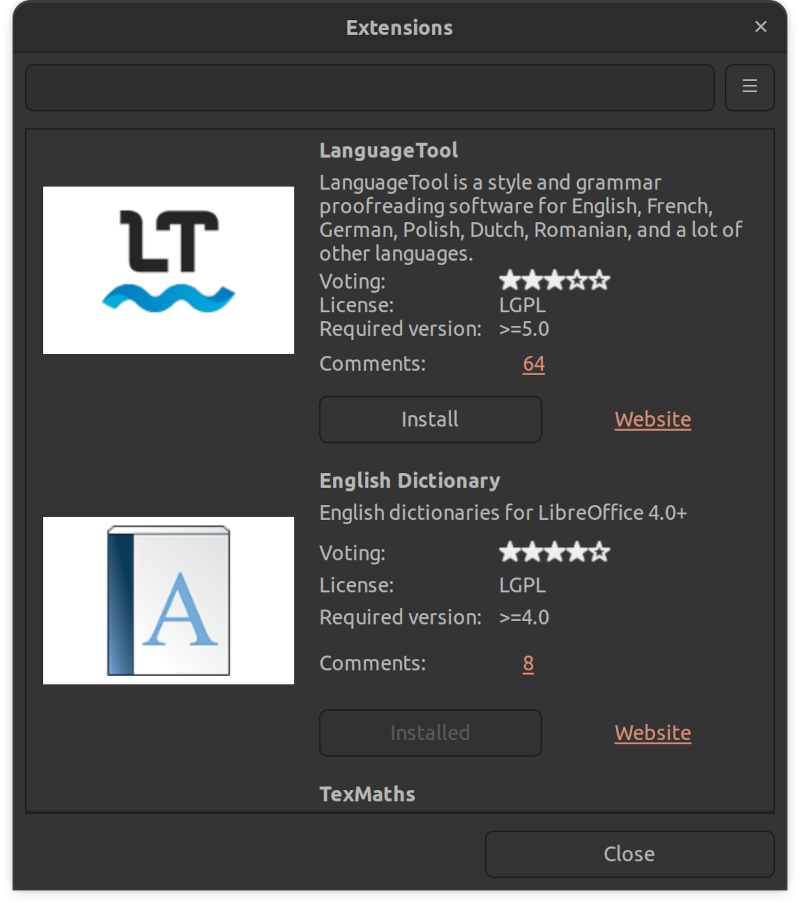
The above command is defined specifically to help developers use the “Extensions” dialog, anywhere in LibreOffice UI, from top menus to context menus and toolbars and also in code, in a simple way.
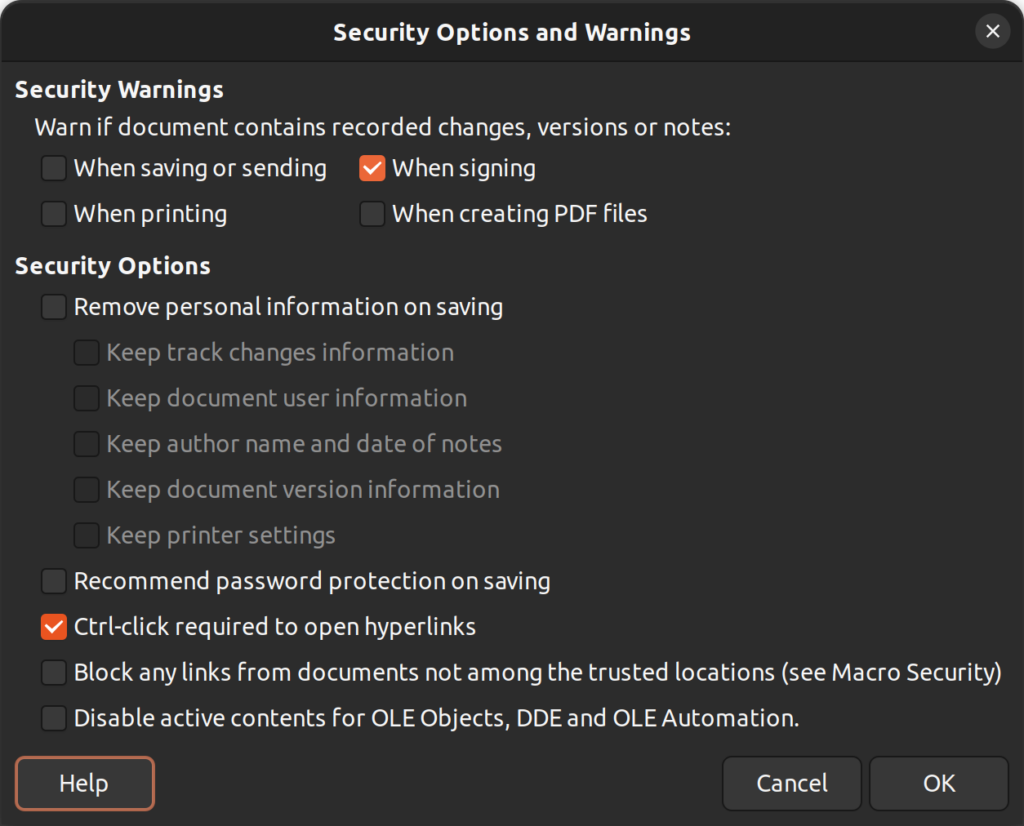
There is another dialog titled “Security Options and Warnings”, which is opened through .uno:OptionsSecurityDialog UNO command. In this way, it can be used easily in other modules of LibreOffice.
SecurityOptionsDialog
Implementing UNO Command
Adding a new UNO command was discussed before, in a separate blog post:
Adding a new UNO command for an options dialog is basically the same. There can be differences regarding the configurations and the data that is passed between the dialog and the caller.
When you create a dialog box directly like the code snippet below, you have access to the member functions defined for that specific dialog:
As you can see, pDlg->GetPath() is accessible here, and you can use it to pass data. But when you are using UNO commands, those functions will not be available directly. Instead, you may pass values that denote the data that will be read from somewhere else, like the configuration.
For example, consider there are multiple paths that you may want to edit using this UNO command with the same dialog. In this case, you can pass a value that shows the associated path that you are changing. It can be passed as an enumeration, and then you set and/or get the value directly from the configuration.
In this way, the callers in the C++ code will have much easier task to do, as it is only calling the UNO command, and the rest is done in the implementation of the UNO command.
For AdditionsDialog, the calling code is as simple as this in cui/source/options/optgdlg.cxx:
UNO dispatch commands can take parameters. As an example, take a look at .uno:NewDoc defined in sfx2/sdi/sfx.sdi:
SfxStringItem NewDoc SID_NEWDOC
(SfxStringItem Region SID_TEMPLATE_REGIONNAME,SfxStringItem Name SID_TEMPLATE_NAME)
[
...
]
As you can see, there are two parameters:
SfxStringItem Region SID_TEMPLATE_REGIONNAME SfxStringItem Name SID_TEMPLATE_NAME
The SfxStringItem is the type, Region and Name are the names of the parameters, SID_TEMPLATE_REGIONNAME and SID_TEMPLATE_NAME are the constants used for passing parameters. The parameter type is not limited to numbers and strings, and it can be any defined class.
To set and get data for this parameters, you may use appropriate Set and Put functions. For example, this gets the parameter if set:
To get to know better how to implement more complex UNO dispatch commands, you can refer to the implementation of the existing UNO commands to get idea about how they are implemented. You can see a comprehensive list of UNO commands here:
Various functionalities of the LibreOffice are available through its programming interface, the UNO API. Here I discuss how to extend it. Read the rest
In the previous blog post, I provided a brief introduction to LibreOfficeKit API which one can use for accessing LibreOffice functionalities in an external application. Here I discuss in detail how to use LibreOfficeKit for converting an ODT to PDF, or from/to virtually any other format that LibreOffice supports. Read the rest