
While LibreOffice is (mostly) in C++ and uses native GUI toolkit on different platforms, it is still possible to use web technologies with LibreOffice. Here I discuss how.
Webview
Webview is a small web browser widget that is inside an application. There are many ways to use web technologies with LibreOffice. But, using a webview widget like pywebview is probably the easiest way to link a webview with LibreOffice. The idea is to display a web page in a webview widget that Python provides, and link that to LibreOffice via the connection of Python to LibreOffice and the connection of JavaScript in webview to Python, and send UNO commands to interact with LibreOffice via network.
Minimal Example
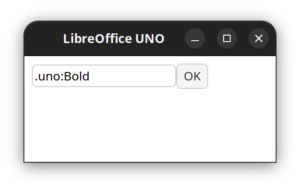
This is a minimal example to show a minimal web page that contains a text box to write the UNO commands like .uno:Bold, and see it working in LibreOffice:
import uno
import webview


class UnoBridge:
    def __init__(self):
        self.ctx = self.desktop = None

    def connect(self):
        if self.ctx is not None:
            return
        component_ctx = uno.getComponentContext()
        resolver = component_ctx.ServiceManager.createInstanceWithContext("com.sun.star.bridge.UnoUrlResolver", component_ctx)
        self.ctx = resolver.resolve("uno:socket,host=127.0.0.1,port=2083;urp;StarOffice.ComponentContext")
        self.desktop = self.ctx.ServiceManager.createInstanceWithContext("com.sun.star.frame.Desktop", self.ctx)

    def dispatch(self, command):
        self.connect()
        frame = self.desktop.getCurrentFrame()
        dispatch_helper = self.ctx.ServiceManager.createInstanceWithContext("com.sun.star.frame.DispatchHelper", self.ctx)
        dispatch_helper.executeDispatch(frame, command.strip(), "", 0, ())


HTML = r'''<input id=c value=".uno:Bold"><button onclick="pywebview.api.dispatch(c.value)">OK</button>'''

webview.create_window("LibreOffice UNO", html=HTML, js_api=UnoBridge())
webview.start()
To use this example, first you should start LibreOffice and make it listen on the port that is written in the code, 2083:
$ libreoffice26.8 "--accept=socket,host=localhost,port=2083;urp;StarOffice.ServiceManager"
You may open Writer, and write a small text and select it. Then, you can run the Python code. You may use LibreOffice internal Python or external Python with uno package. But, you have to install pywebview package anyway: (the command might be different according to your operating system, etc.)
$ pip install pywebview
Then, by running the Python code you should be able to see a window similar to the below screenshot:
$ python3 webuno.py
You can edit the command and after clicking on “OK”, you should be able to see the result in LibreOffice.
How the Python Code Works?
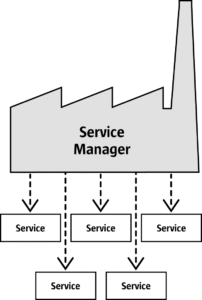
The Python code essentially consist of two important functions: connect and dispatch. The connect function uses uno.getComponentContext() to get the component context, and then finds service manager to execute executeDispatch() with the give UNO dispatch command.
You may read more about service manager in LibreOffice DevGuide chapter 1. This is an illustration from the same chapter of DevGuide:
Final Words
A comprehensive list of UNO dispatch commands are available in the Wiki link below:
Please note that some UNO commands work in every LibreOffice application, but there are many that only work inside a specific application like Writer, Calc, etc. Also, many of the UNO commands require parameters, and we don’t pass any parameters to LibreOffice yet, although it is possible to do that in Python.
This approach to use webview can be helpful in extensions, as usual native GUIs created with com.sun.star.awt for extensions are somehow limited and hard to create.
